

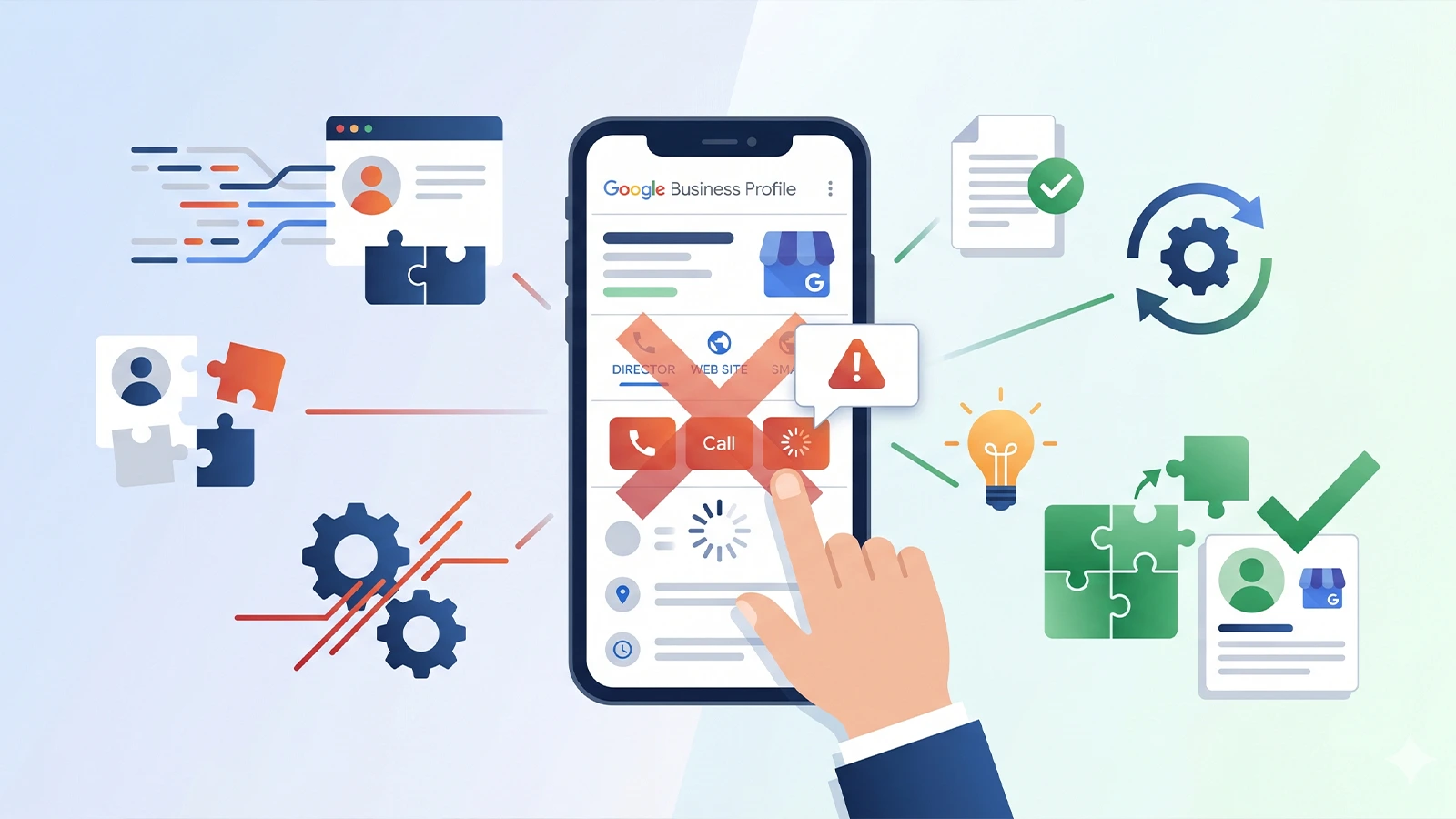
For local businesses, the phone is still one of the fastest paths from "someone found us on Google" to "someone is now a paying customer." That's exactly why the call button on Google Business Profile (formerly Google My Business) matters so much. It sits right on your Maps listing and search panel, letting a potential customer reach you with a single tap no website visit, no scrolling, no friction.
So when business owners try to add or update their number and run into the Google Business Profile call button not saving, it's more than a minor annoyance. It can mean missed calls, lost leads, and a dent in the local visibility you've worked hard to build. This guide walks through why this happens, what the verification errors actually mean, and exactly how to fix it.
Why the Call Button Matters for Local SEO
Before getting into the troubleshooting, it's worth understanding why this small UI element carries so much weight. The call button isn't just a convenience feature; it's directly tied to how Google measures engagement with your profile. Click-to-call data feeds into Google's understanding of how "active" and "useful" your listing is, which can influence local pack rankings. A missing or broken call button also damages trust: customers searching for a plumber, doctor, or real estate consultant at 9 p.m. expect to be able to tap and call immediately. If that option vanishes, they move to the next listing.
This is also why a call button missing in Google Maps is one of the most commonly reported issues in local SEO communities; it's not cosmetic, it's revenue-affecting.
Common Reasons the Call Button Won't Save
There isn't a single cause behind this problem. In most cases, the most common causes of this issue include the following:
Incorrect Phone Number Format
Google Business Profile is strict about formatting. Numbers with extra spaces, missing country codes, special characters, or extension formatting (like "x123") often get silently rejected, and the save action fails without a clear explanation.
Using a VOIP, Call-Tracking, or Forwarding Number
Google's systems sometimes flag virtual numbers, especially those tied to bulk SMS platforms or call-tracking software, as suspicious. This is a frequent GMB phone number issue for businesses that use marketing software to track calls from ads or campaigns.
Profile Not Fully Verified
If your business profile itself is in a "pending verification" or "suspended" state, almost any edit, including the call button, may refuse to save, since Google locks changes until verification is resolved.
Browser or App Glitches
Sometimes it's not Google's policy engine at all; it's a simple front-end bug, cache conflict, or an outdated version of the Google Business Profile app.
Duplicate or Conflicting Listings
If the same phone number is attached to multiple business profiles (even unintentionally, from an old listing that was never removed), Google may block the update to avoid duplicate data conflicts.
Understanding the "This Phone Number Has Been Used Too Many Times for Verification" Error
This is one of the most confusing messages business owners encounter, and it's a specific type of Google Business Profile phone verification error. It typically appears when:
- The same phone number has already been used to verify several other Business Profiles, even ones unrelated to your current account.
- The number belongs to a shared office space, coworking facility, or virtual office where multiple businesses use the same front-desk line.
- A previous owner or manager used the number to verify a listing that was later suspended or removed, but Google's system still has it flagged.
- The number has been used for automated or bulk verification attempts, which trips Google's spam-prevention systems.
Google enforces this limit primarily to prevent fraudulent listings, fake review networks, and spammy duplicate businesses from gaming the verification system. As a result, even genuine businesses can sometimes be affected, especially agencies that manage multiple client profiles using a single office phone number.
Technical Issues That May Affect Phone Number Updates
Not every instance of this problem traces back to a policy issue. Several purely technical factors can interfere with saving a phone number or call button:
Browser and Cache Problems
Stored cookies, outdated cache, or browser extensions (especially ad blockers and privacy tools) can interfere with the Business Profile editing interface, causing changes to appear saved but revert after a refresh.
Mobile App Sync Delays
The Google Business Profile app and the desktop dashboard don't always sync instantly. An edit made on mobile might take several hours to reflect on Search and Maps, leading owners to assume the change failed when it's simply delayed.
Google My Business API Lag
For businesses or agencies managing listings via the API or bulk-location tools, propagation delays between Google's backend systems can temporarily cause call buttons to disappear even when no edit was made.
Account Permission Conflicts
If multiple users (an agency, an in-house marketer, and a business owner, for example) have different access levels, lower-permission users may be blocked from saving certain fields without seeing an explicit error.
Google Business Profile Errors and Policy Violations Affecting the Call Feature
Beyond technical glitches, Google's guidelines themselves can be the root cause. Common policy-related triggers include:
- Number doesn't match the business location's region: Using a number with a different area or country code than your listed address can raise a verification flag.
- Number is shared across unrelated businesses: A known issue for businesses in shared coworking spaces.
- History of guideline violations: profiles previously flagged for fake reviews, keyword-stuffed business names, or duplicate listings face stricter scrutiny on every subsequent edit.
- Mismatched NAP (Name, Address, Phone) data across the web inconsistent phone numbers across directories, your website, and citations can make Google's system treat an update as suspicious rather than legitimate.
Step-by-Step Solutions to Fix the Issue
- Double-check the number format. Use the standard format for your country (e.g., +91 followed by the 10-digit number for India), with no extra spaces, slashes, or letters.
- Clear your browser cache or try an incognito window. This rules out a simple front-end bug before assuming it's a policy block.
- Update via the Google Business Profile app instead of the browser, or vice versa; sometimes one interface succeeds where the other fails.
- Check your verification status in the dashboard. If it shows "pending" or "suspended," resolve that first; the call button won't save until the listing itself is fully verified.
- Use a direct, location-specific number rather than a shared front-desk or VOIP number where possible, especially if you've previously hit the "used too many times" error.
- Request reverification through Google's support form if the phone-number-blocked error persists. Provide documentation (utility bills, business registration, lease agreement) showing your legitimate connection to that number.
- Audit for duplicate listings using your business name and address, and request removal of any old or unmanaged duplicates claiming the same number.
- Wait out propagation delays. If everything appears correct, give it 24–48 hours before re-attempting the edit, since Google's systems sometimes need time to process changes.
- Reach out to Google Business Profile support directly via the Help Center chat if none of the above resolves it, especially useful for persistent Google My Business troubleshooting cases that don't fit a standard pattern.
Tips for Preventing Future Phone Number and Verification Problems
- Use a dedicated, unique phone number for each business location rather than a shared central line.
- Keep your NAP details consistent across your website, directories, and social profiles.
- Avoid frequent number changes; only update when necessary.
- Limit the number of people with owner/manager access to reduce accidental conflicting edits.
- Document your verification history (screenshots, confirmation emails) in case you need to dispute a future error.
Best Practices for Maintaining an Optimized Google Business Profile
A healthy, fully optimized profile reduces the odds of running into call-button issues in the first place. As part of ongoing local SEO tips, businesses should:
- Keep business hours, categories, and services updated regularly.
- Respond to reviews consistently to maintain an active engagement signal.
- Post updates, offers, or photos at least a few times a month.
- Monitor the "Performance" tab to track call button clicks and catch anomalies early.
- Periodically audit the listing for accuracy, especially after any major business change (new address, new number, ownership change).
Conclusion
A Google Business Profile call button not saving is rarely a dead end; it's usually a sign of one of a handful of fixable issues: formatting errors, verification problems, technical glitches, or policy flags tied to shared or overused numbers. Start with the simple fixes (formatting, cache, app vs. browser), move on to verification status, and escalate to Google support with
documentation if the "used too many times" error persists. Treat your Business Profile as a living asset that needs regular maintenance, not a one-time setup, and the call button along with the leads it brings in will stay reliable for the long run.
If you've tried the steps above and the issue still won't resolve, don't let it keep costing you leads. Want help fixing it? Contact Yung Media to get your Google Business Profile call button issue resolved quickly and correctly.